(7.1) Search by Product – How to Use Helium10 to Find Potential Products

Search by Product – How to Use Helium10 to Find Potential Products
Eazyppc welcomes you to the post ‘Search by Product – How to Use Helium10 to Find Potential Products’ – you should read and thoroughly understand the previous posts, as Eazyppc uses terms and concepts already explained in earlier posts for subsequent ones.
Posts you should be familiar with before reading this one:
For new sellers, choosing a potential product requires a great deal of time and effort to research thoroughly – however, it also simultaneously provides many valuable insights into different product categories. For this reason, becoming proficient with product research tools is essential. Eazyppc’s goal in this post is to help you understand: (1) what the Black Box > Products product search tool can do, (2) a specific process for finding products, and (3) other important considerations related to this process. First, you need to navigate to Black Box > Products > Advanced as shown below (you can also explore the Simple mode on your own).

In addition, take a look at the “Black Box Training” videos from Helium10 to get a basic understanding of what this tool offers. In these videos and Helium10’s articles, they also explain some use cases and provide practical examples.
Next, you will see this filter panel:
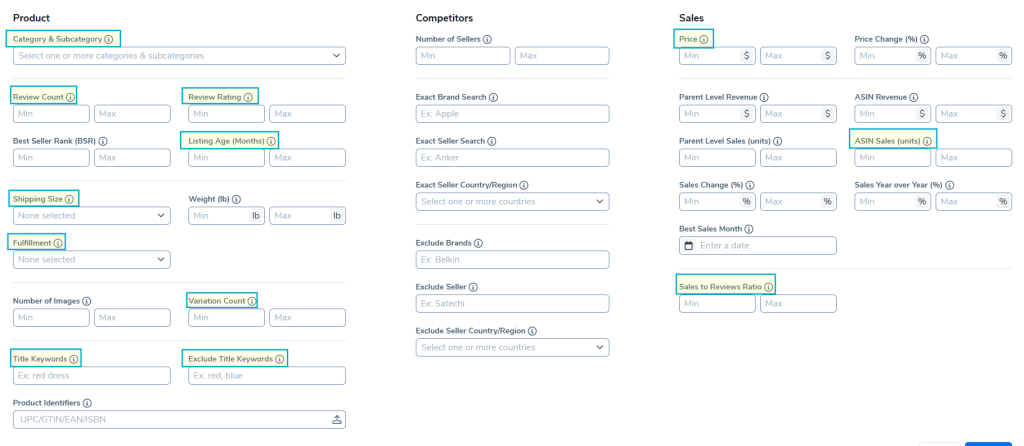
The highlighted fields are the ones Eazyppc recommends using. Additionally, other fields such as ‘Best Sales Months’ can be applied when researching seasonal or trend-based products.
Category & Subcategory
- Here, you can select a product category and subcategory -> narrowing the search scope and focusing on specific markets -> the tool returns products belonging to that category/subcategory.
Review Count and Review Rating
- Review Count filters products that have a number of customer reviews within a specific range. Consider setting max 50 (100) to find products sold by newer sellers -> use the sales performance of these newly reviewed products as stepping stones for research.
- Review Rating – for example min 4, when combined with the above condition, returns products that are newly reviewed with positive ratings. Conversely, max 4 combined with the above returns newly listed products with poor ratings.
Listing Age Month
- Here, you can set the age of a product measured from the date it was first listed until now. This helps you distinguish between products that have been around for a long time and products newly launched to market.
- If you want to find products with stable sales, select 12 months or more. Conversely, if you are looking for newly listed products, listings aged 1–12 months may indicate new products beginning to gain market interest.
Shipping Size
Fulfillment
- Simply select FBA or FBM
Variantion Count
- Set the number of variations a product currently has – such as color, size, volume, etc.
- However, more variations also means the product may be more complex to manage and requires a clear strategy for inventory, and the initial test quantity will therefore also be higher.
Title Keywords and Exclude Title Keywords
- Title Keywords allows you to enter keywords that must appear in the title, in order to refine the search results to what you are targeting. For example: if you are looking for products related to “collagen“, you can enter this word to only display products containing “collagen” in the title.
- Conversely, Exclude Title Keywords helps you remove products containing irrelevant keywords or those outside your area of interest. For example: if you do not want to see collagen products made from fish, enter “fish“, “marine” – simply add those words to the exclusion field.
Price
- The desired selling price range for the product (for example, if you have set Max Reviews 50 and max Listing Age Months 6, then the price range here is the range you intend to sell at during the early stage -> increase price once you have achieved good organic ranking and accumulated Reviews)
- If you choose a price that is too low (below €10), you may have difficulty generating profit after deducting costs such as FBA fees, shipping, and advertising. This segment could be categorized as everyday consumer/grocery goods – requiring a manufacturing advantage to minimize cost of goods sold. If you choose a price that is too high during the initial launch phase – with little or no Reviews, Eazyppc often observes that customers may browse the product and pass on it frequently, leading to a lower conversion rate -> increased advertising costs -> after which you will need to lower the price to sell.
ASIN Sales & Sales to Review Ratio
- Here, you can set metrics to filter for product niches where customers tend to leave more Reviews -> faster Review accumulation -> enabling a price increase sooner.
After selecting your filters and receiving results from Black Box, research each returned product according to the factors in the (6.) series that Eazyppc has covered, including:
Tất cả nội dung trên blog này chỉ nhằm mục đích cung cấp thông tin và chia sẻ kinh nghiệm cá nhân về kinh doanh trên Amazon. Eazyppc.com không đảm bảo bất kỳ kết quả cụ thể nào từ việc áp dụng các chiến lược hoặc thông tin được chia sẻ.
Việc kinh doanh có thể tiềm ẩn rủi ro, và mỗi cá nhân cần tự nghiên cứu, đánh giá trước khi đưa ra quyết định. Eazyppc.com không chịu trách nhiệm đối với bất kỳ tổn thất, thiệt hại nào phát sinh từ việc áp dụng thông tin trên blog này.


Chấp thuận Điều khoản & Chính sách
Trước khi tiếp tục truy cập website Eazyppc.com, bạn vui lòng đọc và đồng ý với: