
Create Campaign Sponsored Product Keyword Tool – Multiple Keywords in 1 Campaign
This Eazyppc tool helps Sellers create campaigns: each campaign with 1 ASIN – containing multiple Keywords in 1 campaign (Note: Sellers should not use this tool to create campaigns with 1 ASIN – 1 keyword)
User Guide:
Sellers, please follow the instructions exactly – if you make a mistake at any step, the tool will not work. An “Invalid” error means the file uploaded by the Seller does not match the instructions; please go back to the first step. Thank you!
1/ Create the CSV file
Access this Link > make a copy of the file
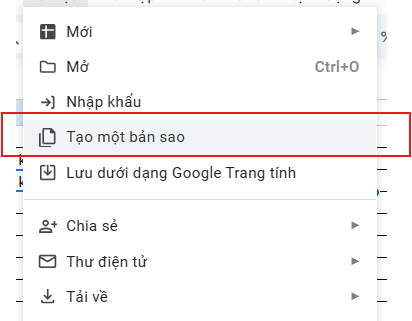
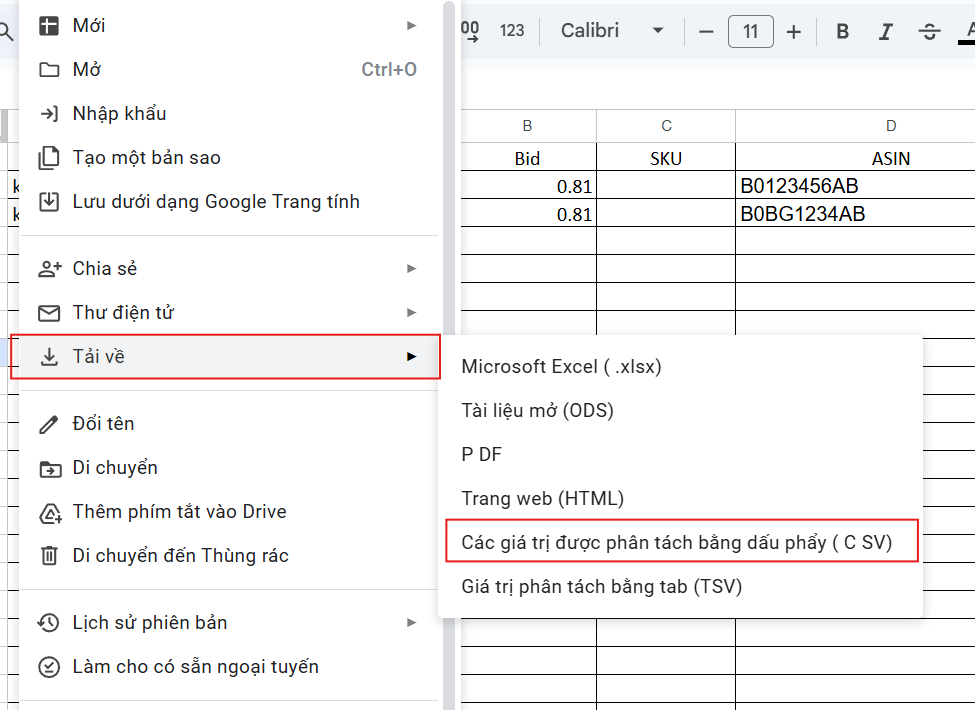
-> enter your data > download as CSV
Keyword column:
- Note the format: keyword 1; keyword 2; keyword 3 – use a semicolon ; followed by a space to separate each keyword
Bid column:
- use a dot (period)
SKU/ASIN column:
- Enter the SKU code
- If you don’t have a SKU, enter the ASIN
- For POD without a SKU, enter the ASIN
- For Vendor, enter the ASIN
- …
Note: do not use both SKU and ASIN at the same time
Portfolio ID column > follow these steps to get the Portfolio ID:
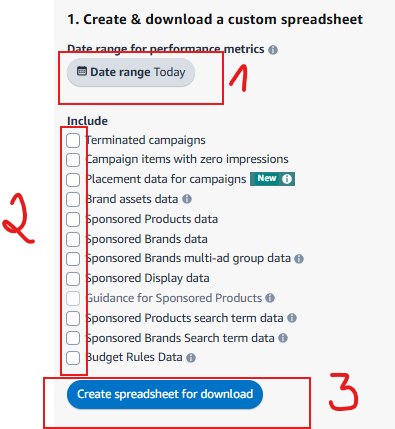
Campaign Daily Budget column > enter a whole number, the budget for each campaign
Campaign Name > enter a label to tag campaigns – for example ‘motherday2025’ to tag campaigns related to Mother’s Day 2025
Download the CSV file
2/ Upload the CSV file to the Upload Input File section on the Tool
3/ Select the Configuration parameters
- If you used SKU codes in the CSV file, select SKU
- If you used ASIN codes in the CSV file, select ASIN
4/ Generate the file
- Click Generate SP Keywords File
- Wait for the Tool to process, then download and you’re done
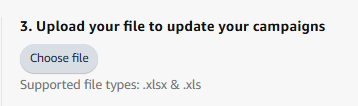
5/ Upload the downloaded file to Bulk Operation to create campaigns
Seller Central > Advertising > Bulk Operation >
Wishing you success!
You must be logged in to view this content. You must be logged in to view this content.
SP Keywords Generator
Convert your CSV keywords into Amazon Sponsored Products format with Portfolio ID support
