(12.7) Daily & Weekly Optimization Workflow – PPC Campaign Tracking Optimization

Daily & Weekly Optimization Workflow – PPC Campaign Tracking Optimization
Eazyppc welcomes you to the lesson ‘Daily & Weekly Optimization Workflow’ – you should read and thoroughly understand the previous lessons, as Eazyppc uses terms and concepts that were explained in earlier lessons throughout this one.
After the Seller has completed all the steps in the Pre-Advertising Launch Checklist and has set up the appropriate ad campaigns as outlined in the Portfolio structure that Eazyppc has guided. At this point, the next task the Seller needs to handle well is: Daily/Weekly Optimization. (Not fully applicable to the ‘aggressive’ growth model)
📌1. Reduce Bids on Ad Campaigns That Spend Without Generating Orders (Frequency: daily or every 3–7 days — depending on the Seller)
Sellers need to check daily and reduce Bids for keywords or ASINs being targeted that are not generating orders until the campaign reaches the desired optimized state using 2 simple methods:
Method 1: Based on Spend
- If a Target spends more than 1–5 USD with no orders, reduce the Bid by 10%.
- Use the Bulk Targeting Edit feature or Bulkfile Operation to save time.
- Note: The Threshold (Spend limit) depends on the Seller’s own budget and strategy.
Method 2: Based on Number of Clicks
- If a Target has more than 5–10 Clicks but no orders, reduce the Bid by 10%.
- This method helps you control costs based on user behavior rather than just spend.
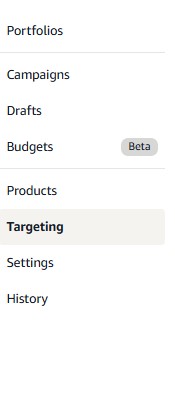
Use the Targeting filter in the Amazon Advertising Console:
- Seller Central > Menu > Advertising > Campaign Manager > Targeting > Filter by

📌2. Manage Search Terms Effectively (Frequency: weekly)
Every week, review the Search Term Report to:
A. Add Negative Keywords
-
If a Search Term has more than 5–10 Clicks but Orders < 1, add it to Negative Keywords.
B. Scale Up Effective Search Terms
- If a Search Term has ≤ 5–10 Clicks but Orders ≥ 1, then:
- Create a new campaign with Sponsored Products for those Search Terms (if no campaign exists yet)
- Add those keywords to Sponsored Display and Sponsored Brand campaigns.
-> Eazyppc’s Search Term Filter & Negative Tool
📌3. Optimize Ad Placement Positions (Frequency: monthly)
After 30 days, Sellers need to review the performance of ad placement positions:
-
For example, if Rest of Search is generating good orders:
- Increase the Bid by 20% for the Rest of Search placement.
- At the same time, decrease the Bid by 20% for the main keyword in the campaign to balance the budget.
-> Tool for Bulk Bid Adjustment by Ad Placement Position
📌4. Pause Ads for Products Running Low on Inventory (Frequency: weekly)
Combine inventory reports with Bulkfiles to:
- Pause or deeply reduce ads for SKUs that are low on stock or nearly out of stock and have not yet been restocked.
- If a product is still showing ads but has a long delivery lead time, it will lower the conversion rate and unnecessarily increase ad spend.
- Organic Rank will decline. If the Seller wants to partially preserve Organic Rank, simply reduce the Bid deeply instead of fully pausing -> Organic Rank will still drop, but less so.
-> Tool to Pause/Enable Ads Based on Inventory Status
📌5. Optimize Ads by Organic Rank (Frequency: weekly)
- Use Cerebro by Helium 10 to pull Organic Rank data
- Combine with Amazon Bulkfiles to adjust Bids and help keywords improve their Organic Rank
-> Eazyppc’s Tool for Bid Adjustment by Organic Rank
Tất cả nội dung trên blog này chỉ nhằm mục đích cung cấp thông tin và chia sẻ kinh nghiệm cá nhân về kinh doanh trên Amazon. Eazyppc.com không đảm bảo bất kỳ kết quả cụ thể nào từ việc áp dụng các chiến lược hoặc thông tin được chia sẻ.
Việc kinh doanh có thể tiềm ẩn rủi ro, và mỗi cá nhân cần tự nghiên cứu, đánh giá trước khi đưa ra quyết định. Eazyppc.com không chịu trách nhiệm đối với bất kỳ tổn thất, thiệt hại nào phát sinh từ việc áp dụng thông tin trên blog này.


Chấp thuận Điều khoản & Chính sách
Trước khi tiếp tục truy cập website Eazyppc.com, bạn vui lòng đọc và đồng ý với: